



 Shopping Cart
 Brother MFC-J5855DW INKvestment Tank All-In-One Color Printer
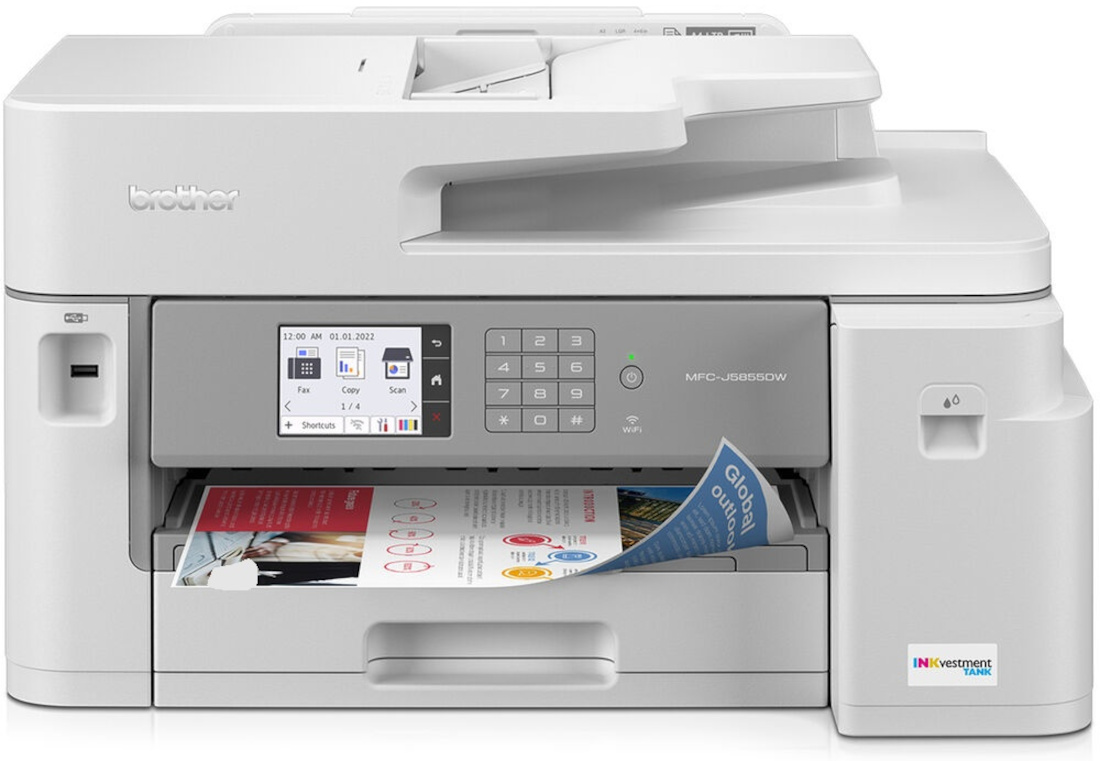


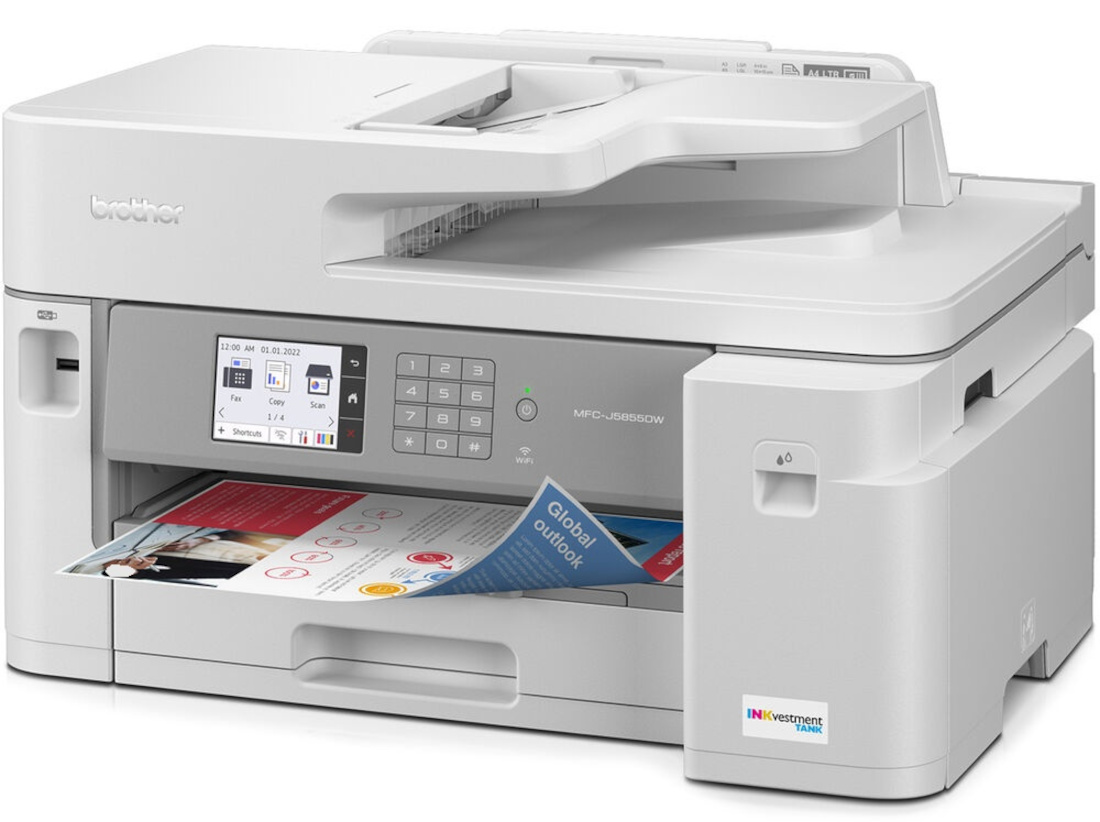
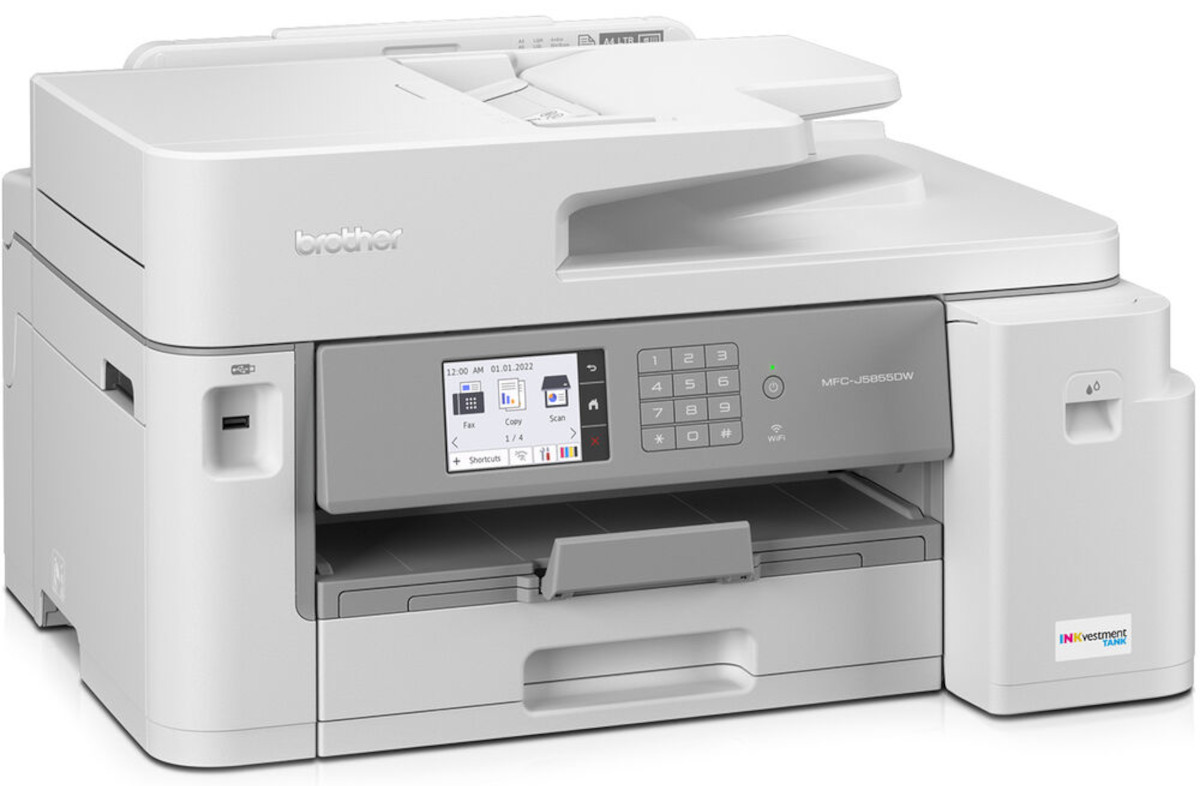

Images are for illustration purposes only and do not necessarily reflect the actual product.
Product Details
Specifications
Accessories
Reviews
Product Details
Main Features
- All-In-One Printer: Print, scan, copy and fax
- Color and black and white printing
- Time to first page: Approximately 4.4 seconds
- Front USB host
- Ethernet and Wi-Fi Connectivity
- Automatic two-sided prints
- 3.5" Color Touchscreen
- Recommended Monthly Volume: Up to 250 to 3,500 pages
- Maximum print document size: 11"x17" (legal size)
- Copy or scan documents up to 8.5"x11" (letter size)
- 50-page automatic document feeder
- Color Flatbed scanner
- Scanning speed: Up to 25 images per minute
Specifications
General Specifications
| Product Name | MFC-J5855DW All-In-One Inkvestment Tank |
| Product Type | Inkjet Multifunction Printer |
| Environmentally Friendly | Yes |
| Touchscreen | Yes |
| Copy Color | Color |
| Scan Color | Color |
| Fax Color | Color |
| Ethernet | Yes |
| Wireless LAN | Yes |
| Display Screen Type | LCD |
| Standard Input Media Capacity | 350 sheets |
| Ethernet Technology | Ethernet |
| USB | Yes |
| Maximum Mono Print Speed (ppm) | 30 |
| Maximum Color Print Speed (ppm) | 30 |
| Product Family | INKvestment Tank |
| Print Color Capability | Color |
| Energy Star | Yes |
| Maximum Print Resolution (dpi) | 4800 x 1200 |
| Connectivity Technology | Wireless |
| Form Factor | Desktop |
| Scanner Type | Flatbed |
| Duplex Printing | Automatic |
| Multifunction Devices | Copier/Fax/Printer/ Scanner |
| Duty Cycle | 40000 |
| Recommended Use | Plain Paper Print |
| Virtual Assistant Supported | Alexa |
| Recommended Monthly Print Volume | 250 to 3500 |
| Optical Resolution (dpi) | 1200 |
| Height | 12" |
| Width | 21.5" |
| Depth | 17.2" |
| Fax Type | Flatbed |
| Copier Type | Flatbed |
| Product Model | MFC-J5855DW |
| Product Line | INKvestment Tank |
| Screen Size | 3.50" |
| Input Voltage | 120 V AC |
| Power Source | AC Supply |
 Download Manufacturer Specifications
Accessories

Reviews


Paper coatings are designed to control ink absorption and spread, producing brilliant, sharp images with less ink.
If you are not getting the results you expect, don't give up on your printer until you manually set the driver for the paper that you are using.
Are your printer nozzles getting clogged? Try adding a humidifier to the room where you keep your printer.
MY ACCOUNT
INFO & POLICIES
SHOP EASY
PAYMENT OPTIONS



* Images are for illustration purposes only.