



 Shopping Cart
 Canon ImageClass MF262DW II Multifunction Monochrome Printer
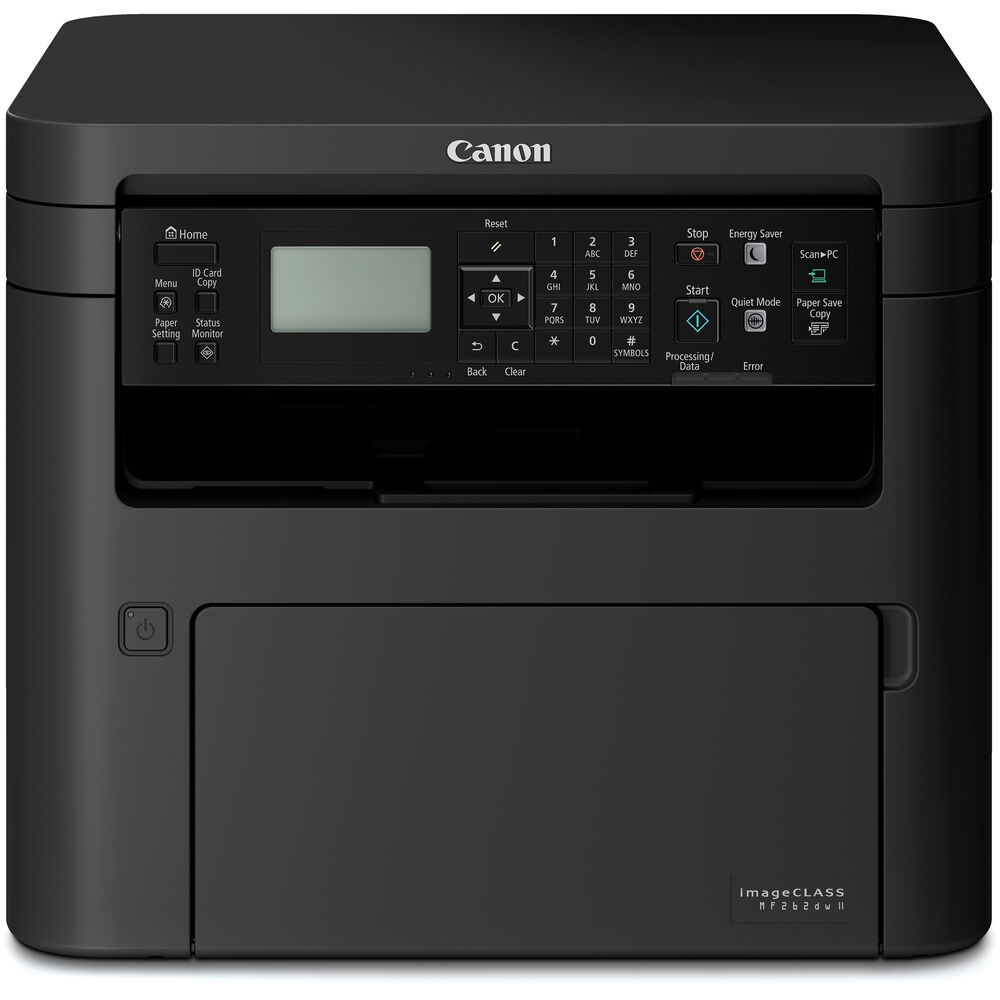


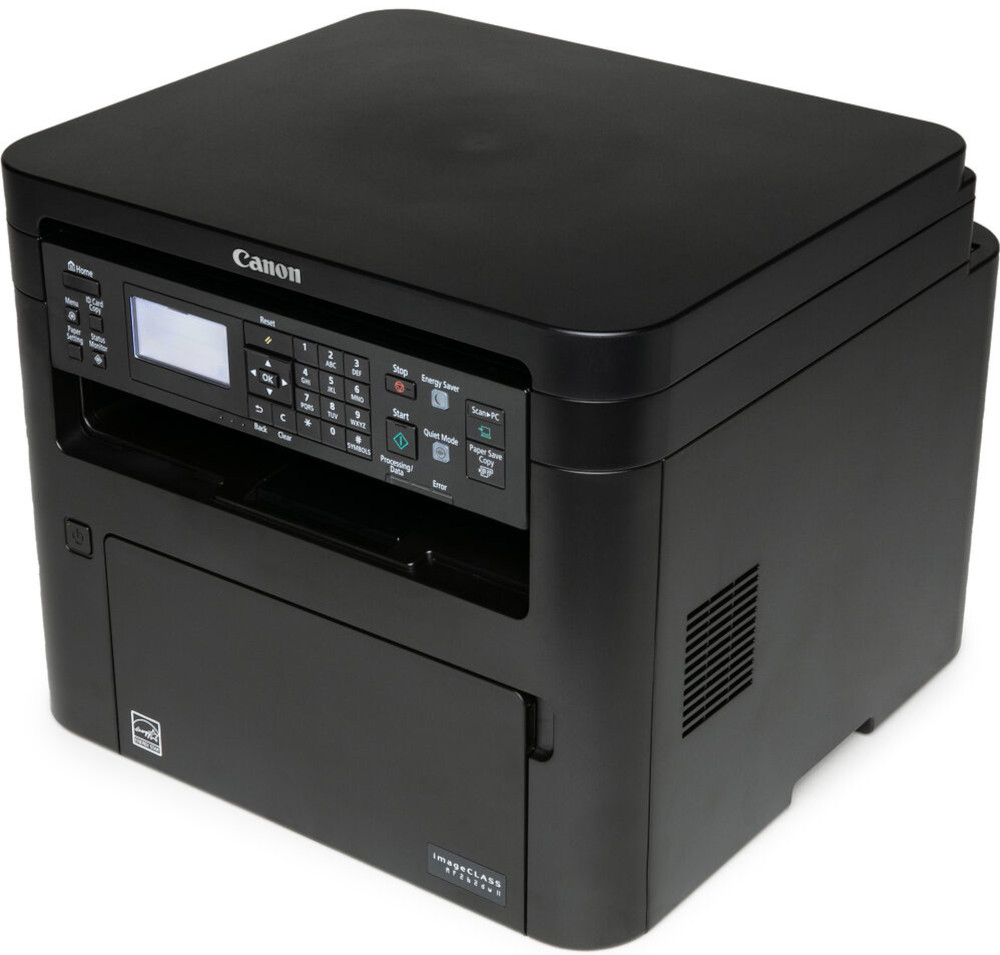
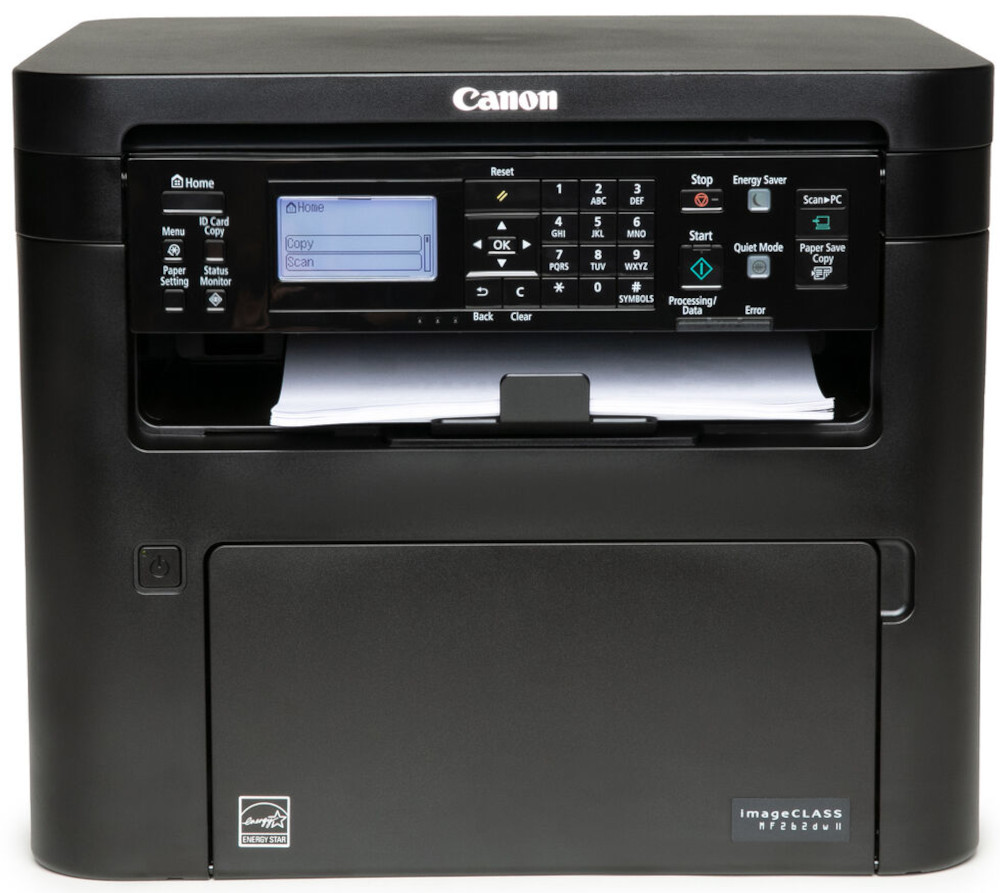
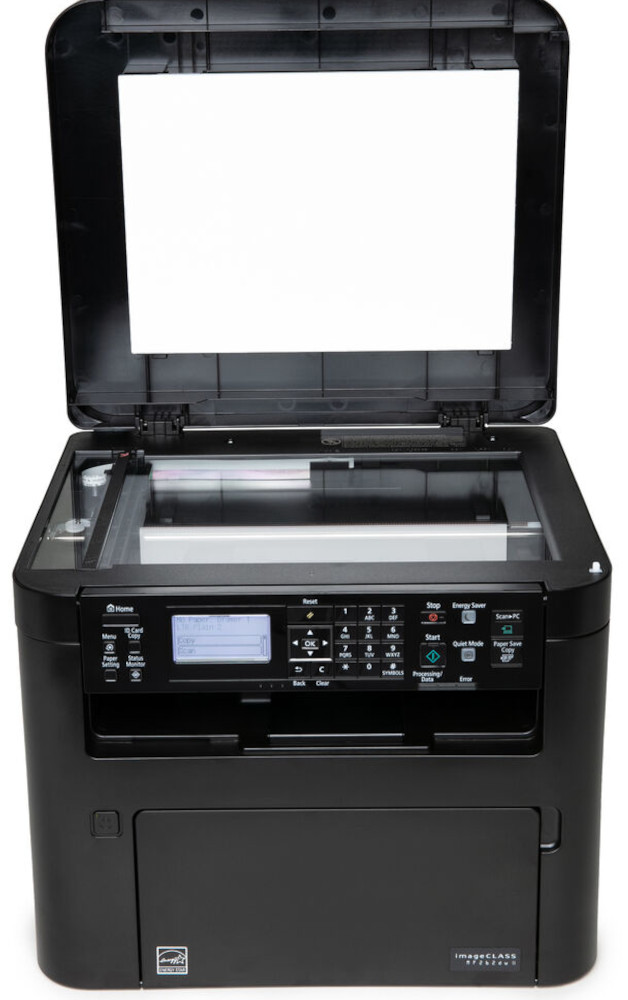

Images are for illustration purposes only and do not necessarily reflect the actual product.
Product Details
Specifications
Accessories
Reviews
Product Details
Main Features
- Functions: print, scan and copy
- Print speed up to 30 pages per minute
- Automatic two-sided prints
- Wi-Fi, Ethernet & USB Connectivity
- Compact design for small offices
- Flatbed scanner
- Black and white printing
- First print-out time as fast as 5.1 seconds
- Print resolution: 600 x 600 dpi
Specifications
General Specifications
| unctions | Print, Scan, Copy (3 in 1) |
| Print Speed | Up to 30 ppm (Letter); Up to 24ppm (Legal) |
| Document Feeder | No Document Feeder |
| First Print Out Time | Approx. 5.1 Seconds |
| Print / Copy Resolution | Up to 600 x 600 dpi |
| Scan Resolution | Up to 600 x 600 dpi |
| Print / Copy Memory | 256 MB |
| Printer Language | UFR II-LT, PCL6, PCL5e |
| Network Security | Authentication Standard: Department ID Authentication. IP/MAC Address Filtering, IPSEC, TLS Encrypted Communication, SNMP V3.0, IEEE 802.11b/g/n, IPv6, SMTP Authentication, POP Authentication before SMTP |
| Connectivity | USB 1.1 Full Speed, 2.0 High Speed, 100 Base-TX/10 Base-T (IEEE 802.3), 802.11bgn |
| Operating Systems | Windows 8.1 / 10, Windows Server 2012 R2/ 2016 / 2019, Mac OS X v10.12 (or later) |
| Paper Capacity | Standard: 250-Sheet Standard Cassette, 1-Sheet Stack Bypass |
| Maximum Monthly Duty Cycle | 30,000 pages |
| Recommended Monthly Print Volume | 250 - 2,500 Pages |
| Min / Max Paper Size | Platen: Up to Letter (8.5" x 11"); ADF: Up to Legal (8.5" x 14") |
| USB Direct Print | JPG, TIFF, PDF |
| Display Panel | 5 line black and white LCD screen |
| Energy Consumption | Approx: 1080 W (Max., w/o Accessories), 340 W (Average), 0.7 W (Energy Saver / Sleep Mode) |
| ENERGY STAR | Yes |
| EPEAT | Silver |
 Download Manufacturer Specifications
Accessories

Reviews


Most printers have a built-in diagnostics program which can be very useful for troubleshooting problems and test-printing without a computer. They are usually initiated by pressing a button or two while turning on the printer.
If your print settings are too dark, it could be detrimental to the life of the cartridge in the long run. It’s important that the density control of the machine be properly set to prevent the machine from pulling too much toner into itself.
Store your laser printer in a properly ventilated area where temperature and humidity do not change frequently. Avoid areas with heavy dust buildup.
MY ACCOUNT
INFO & POLICIES
SHOP EASY
PAYMENT OPTIONS



* Images are for illustration purposes only.