



 Shopping Cart
 Ricoh MP CW2201SP Wide Format Printer
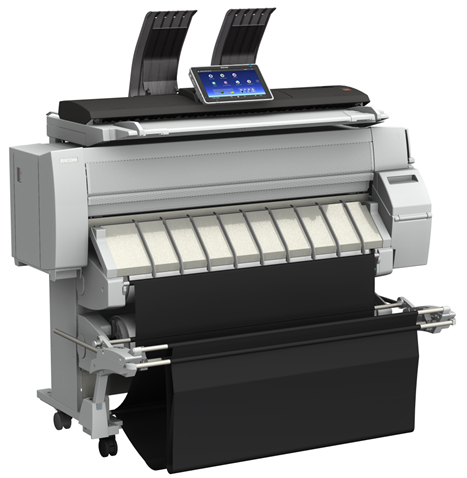


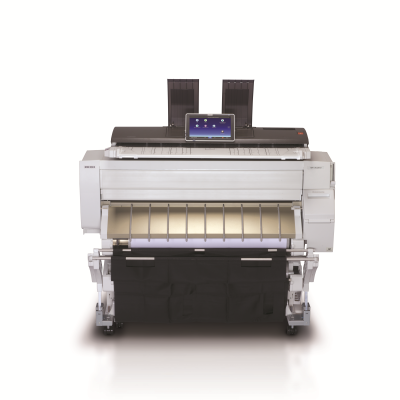
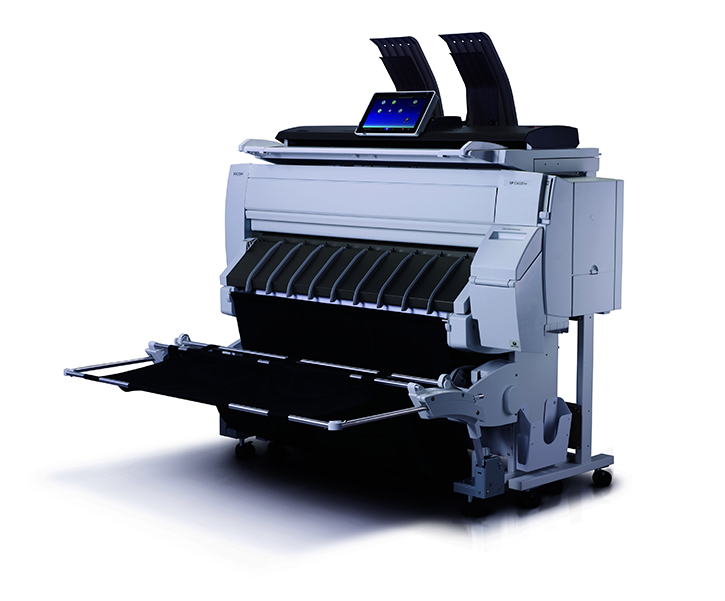

Images are for illustration purposes only and do not necessarily reflect the actual product.
Product Details
Specifications
Accessories
Reviews
Product Details
Main Features
- Wide Format Color Digital Imaging System
- Functions: Print, Copy, Scan
- Print Speeds: Monochrome- 3.8 ppm; Color- 2.1 ppm
- Print Resolution: 1200 x 1200 dpi
- Copy/Scan Resolution: 600 x 600 dpi
- access up to 3000 files stored on the Document Server
- 4GB RAM
- 320GB Hard Disk Drive
- Directly print from or scan-to a USB or SD Card
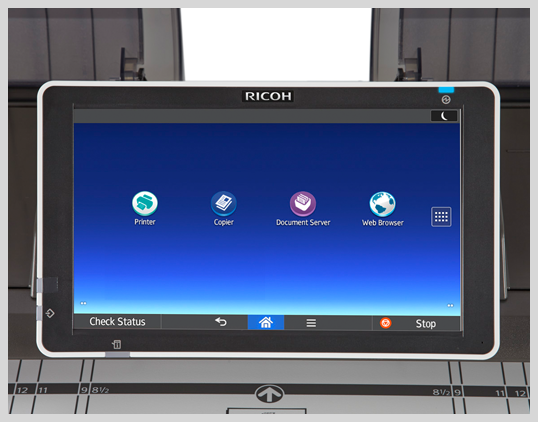
- 10.1" tablet-like Smart Operation Panel
- Bypass Tray
- Output Baskets
- User Replaceable Ink
Specifications
 Download Manufacturer Specifications
Accessories

Reviews


Is your printer feeding in the whole paper stack rather than just one piece at a time? Fan the paper before putting it in the tray to help separate the sheets. Also, store your paper in a cool, dry place as humidity can contribute to this problem.
Not all drivers are pre-installed on all operating systems and as new operating systems are released, you will need to install drivers yourself. Make sure to consult your printer manual.
Allow ink to dry completely to avoid smudging. The time will vary based on the ink and paper quality used as well as the temperature and humidity conditions.
MY ACCOUNT
INFO & POLICIES
SHOP EASY
PAYMENT OPTIONS



* Images are for illustration purposes only.