



 Shopping Cart
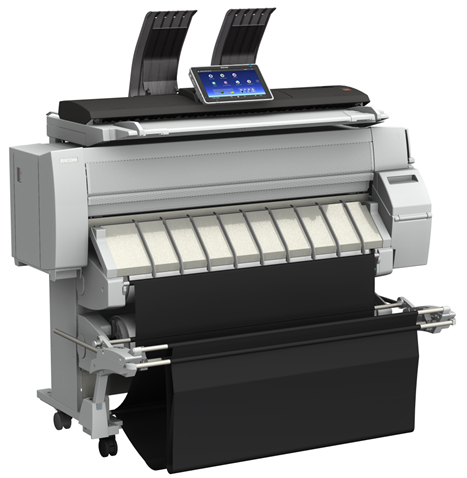
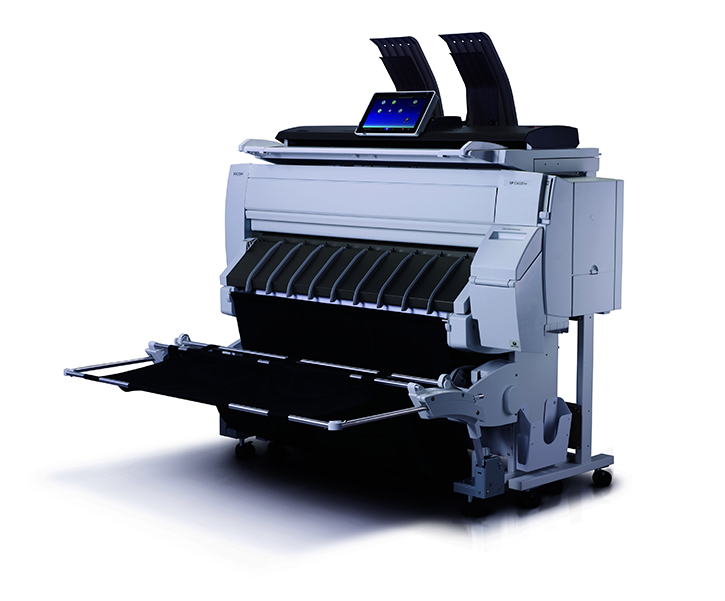
 Ricoh MP CW2201SP Wide Format Printer



Product Details
Specifications
Accessories
Reviews
Product Details
Main Features
- Wide Format Color Digital Imaging System
- Functions: Print, Copy, Scan
- Print Speeds: Monochrome- 3.8 ppm; Color- 2.1 ppm
- Print Resolution: 1200 x 1200 dpi
- Copy/Scan Resolution: 600 x 600 dpi
- access up to 3000 files stored on the Document Server
- 4GB RAM
- 320GB Hard Disk Drive
- Directly print from or scan-to a USB or SD Card
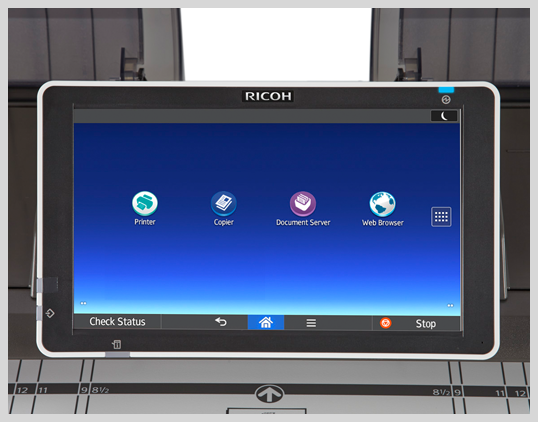
- 10.1" tablet-like Smart Operation Panel
- Bypass Tray
- Output Baskets
- User Replaceable Ink
Specifications
 Download Manufacturer Specifications
Accessories

Reviews


Getting blank pages after you installed a new cartridge? Check that the sticker from the cartridge was properly removed. Alternatively, run the clean print head function to make sure all air bubbles are removed. Do not remove the cartridge once it has been installed.
Most printers will beep once or twice during or after initialization. If it beeps more than that or beeps constantly, it is telling you that something is wrong. Most printers beep when out of paper or out of ink.
Looking to save paper and ink? Make sure to only print the pages you need of your document.
MY ACCOUNT
INFO & POLICIES
SHOP EASY
PAYMENT OPTIONS



* Images are for illustration purposes only.