



 Shopping Cart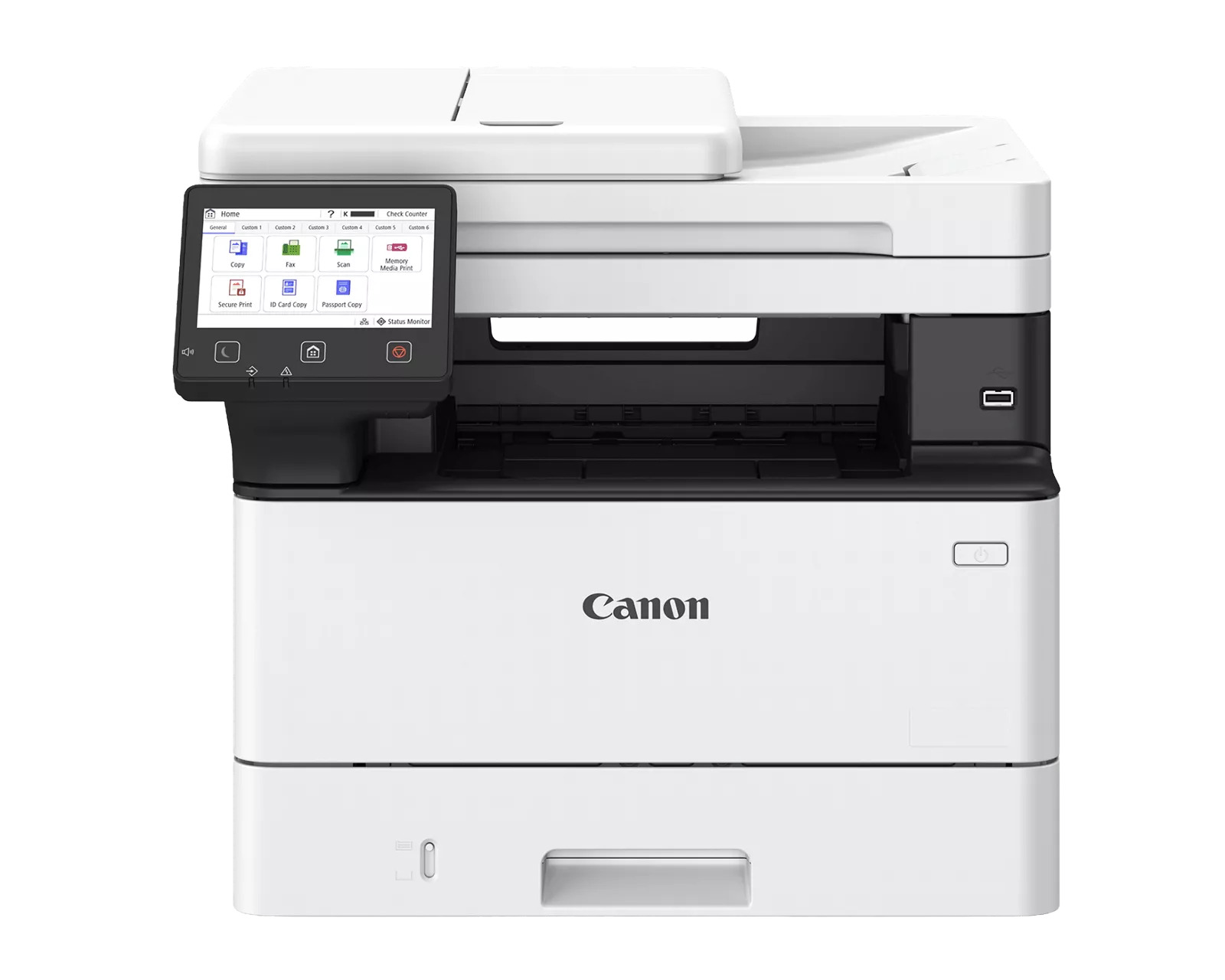



*** ALL TONERS AND SUPPLIES ARE IN STOCK AT DISCOUNTED PRICING , CALL +18882983095.
Printers do not include supplies - toners , drums (Imaging Units) (where applicable) , printer cables , manuals , consumables , trays (where applicable). Power cables are included. Drivers can be downloaded from the manufacturers website. Please verify that drivers available are compatible with your software on the manufacturers site.
Product Details
Specifications
Accessories
Reviews
Product Details
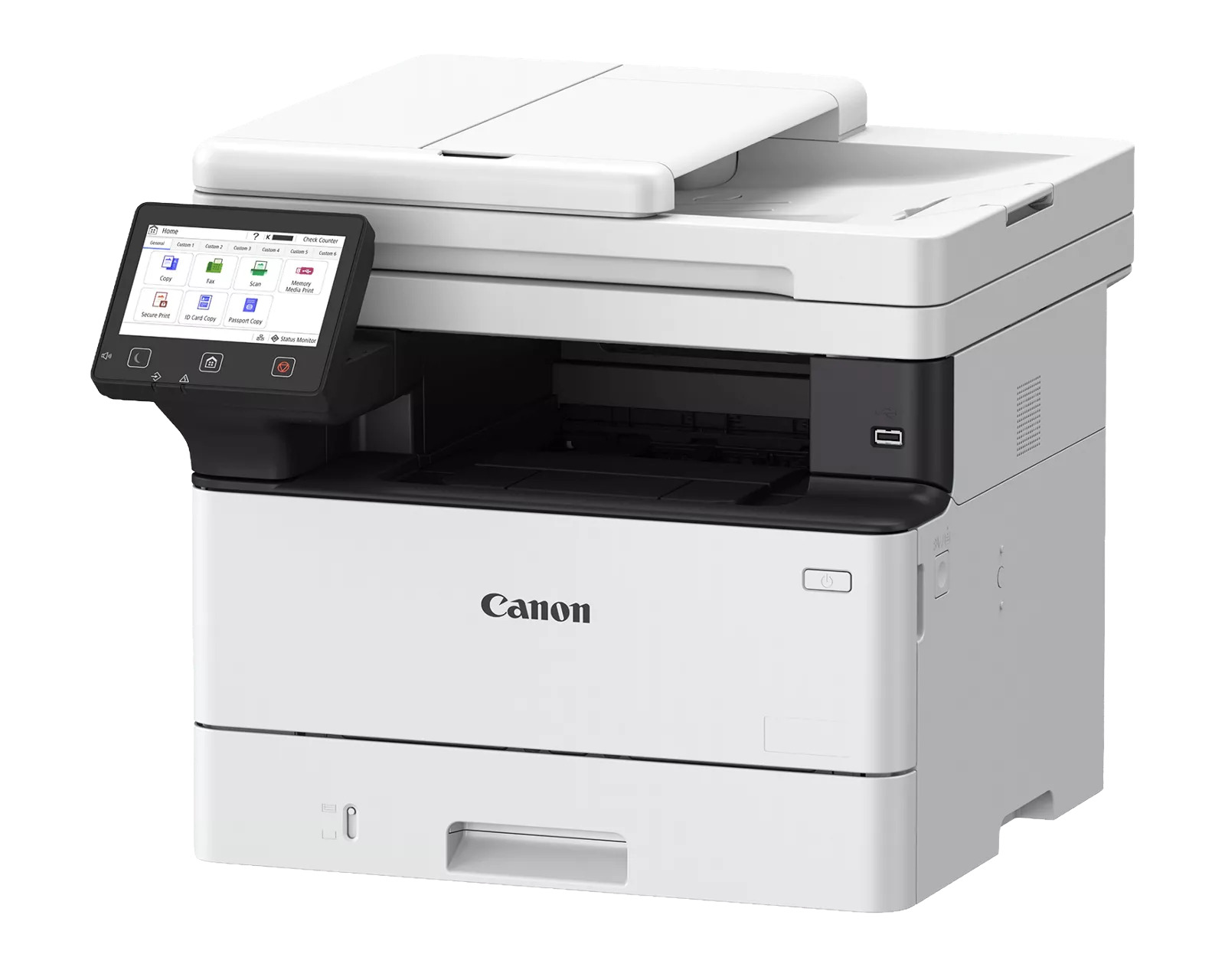
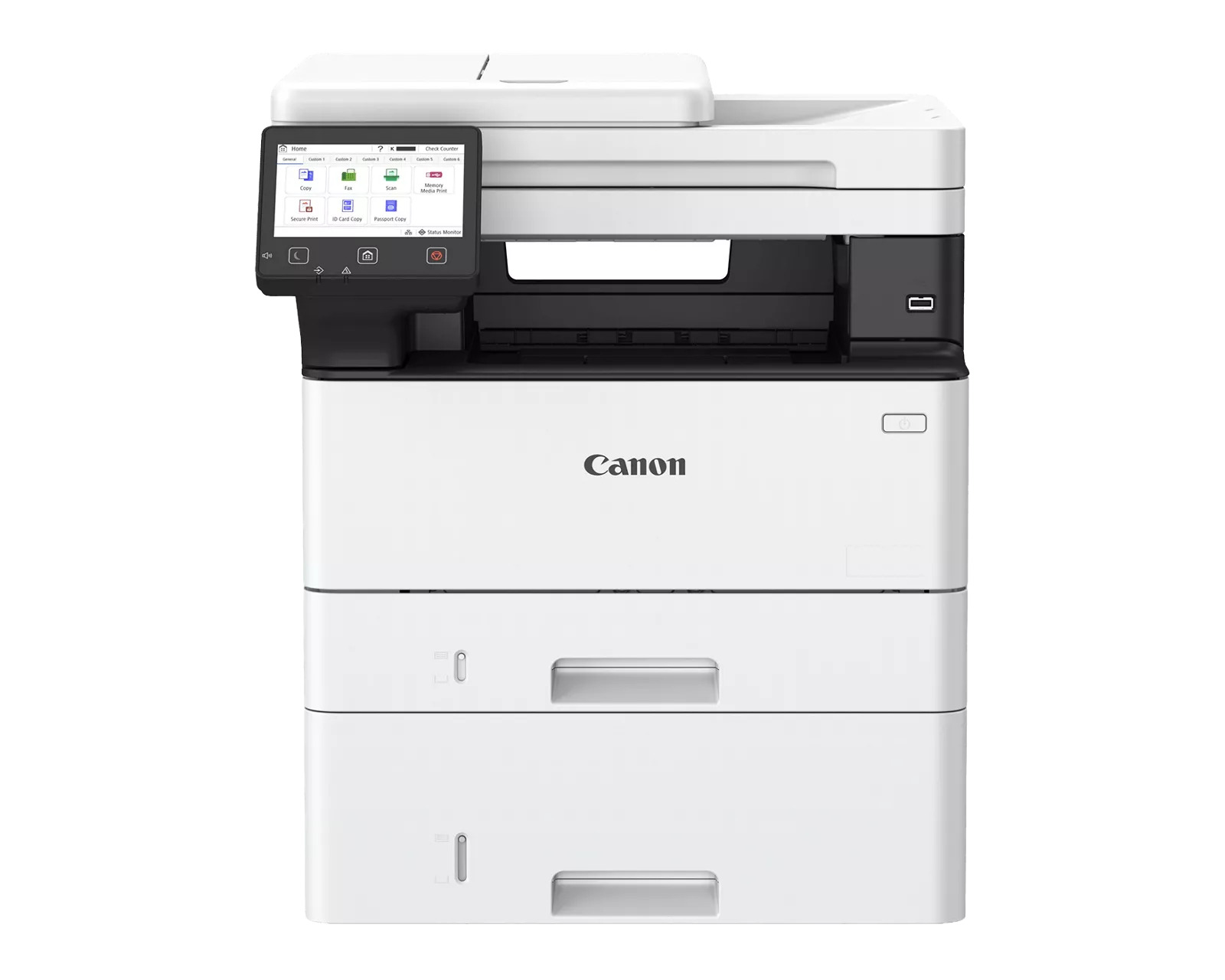
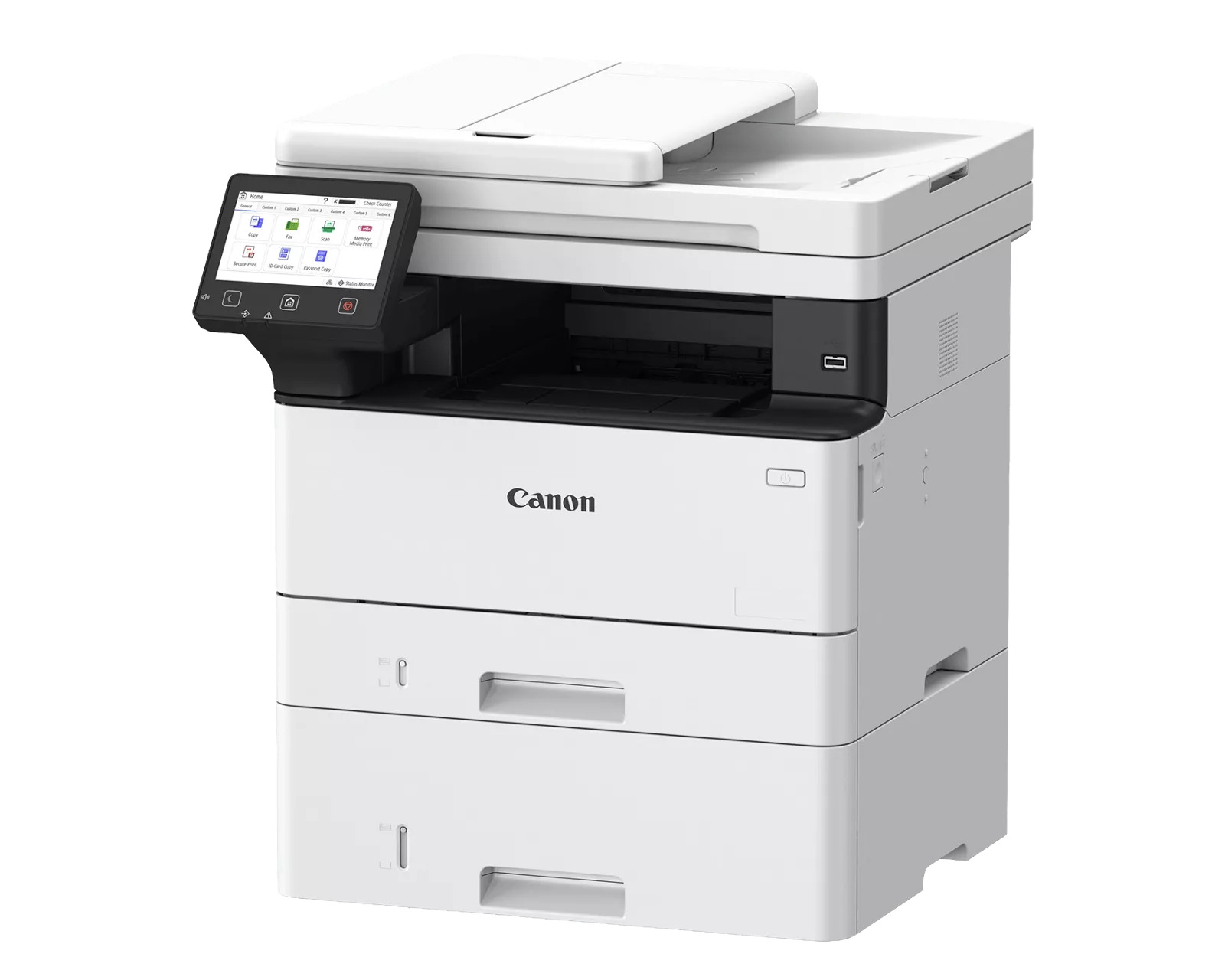
Main Features
- Black-and-white Multifunction Printer
- 42 ppm print speed
- Scan up to 100/80 Ipm (300 dpi) (BW/Color, duplex)
- Prints up to 8-1/2" x 14"
- 900- sheet maximum paper capacity
- Cloud ready solutions
- Hassle-free setup and maintenance
Specifications
 Download Manufacturer Specifications
Accessories

Reviews


If you are printing on photo paper, make sure you have set the printer to this setting and have not left it on the regular printer setting.
Allow ink to dry completely to avoid smudging. The time will vary based on the ink and paper quality used as well as the temperature and humidity conditions.
Tight on office space? Consider buying a machine with networking capabilities which will allow multiple users to use one printer.
MY ACCOUNT
INFO & POLICIES
SHOP EASY
PAYMENT OPTIONS