



 Shopping Cart
 Canon ImageClass MF267DW II Multifunction Monochrome Printer
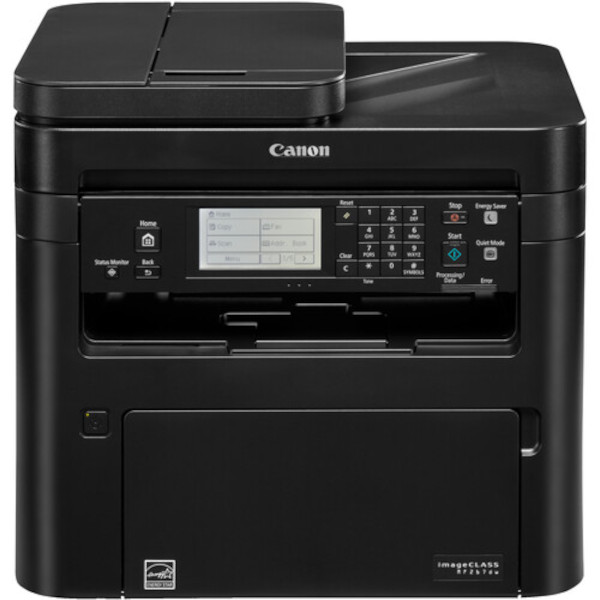


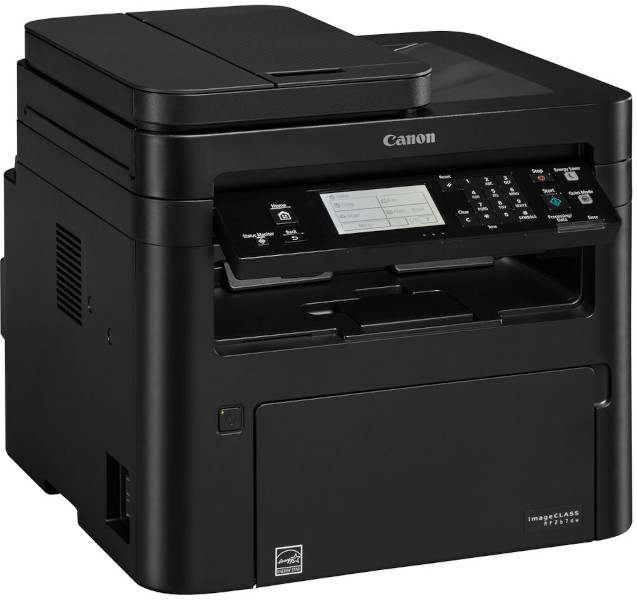
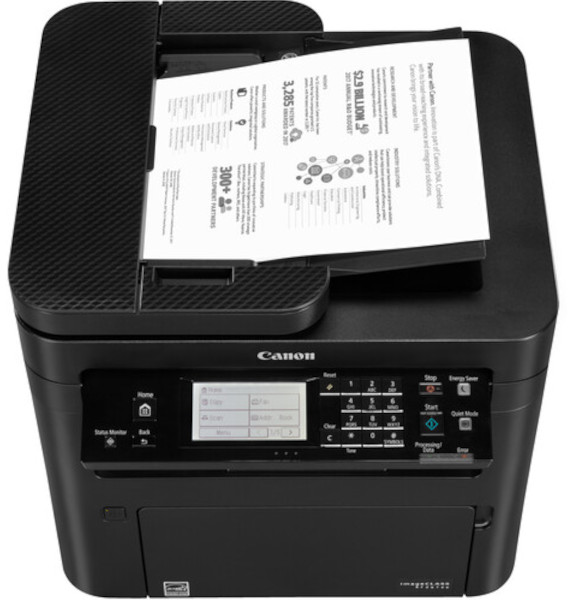
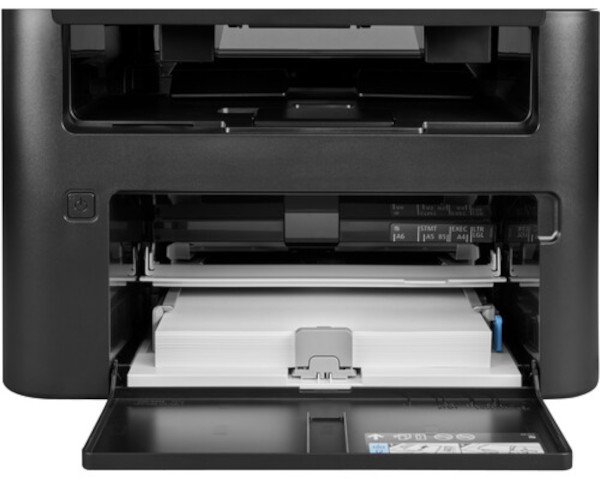

Images are for illustration purposes only and do not necessarily reflect the actual product.
Product Details
Specifications
Accessories
Reviews
Product Details
Main Features
- 4 in 1 printer: print, scan, copy, fax
- Print speed: 30 pages per minute
- 6 line LCD control panel
- Supported media type: Plain, Recycled, Thick, Bond, Label, Envelope
- 15/ 1.6 seconds or less warm-up time from power on/ sleep mode
- First print out time as fast as 5.1 seconds
- Monochrome laser printing
- Automatic 2 sided printing
- 30 sheet automatic document feedetr
- Wi-Fi, Ethernet, and USB connectivity
Specifications
General Specifications
| Product Name | imageCLASS MF267DW II |
| Manufacturer Part Number | 5938C010 |
| Product Type | Laser Multifunction Printer |
| Environmentally Friendly | Yes |
| Touchscreen | Yes |
| Ethernet | Yes |
| Wireless LAN | Yes |
| Display Screen Type | LCD |
| Standard Input Media Capacity | 250 sheets |
| Ethernet Technology | Fast Ethernet |
| USB | Yes |
| Maximum Mono Print Speed (ppm) | 30 |
| Product Family | imageCLASS |
| Print Color Capability | Monochrome |
| Energy Star | Yes |
| Product Color | Black |
| Maximum Print Resolution (dpi) | 600 |
| Media Type | Plain Paper |
| Scanner Type | Flatbed |
| Duplex Printing | Automatic |
| Multifunction Devices | Copier/Fax/Printer/ Scanner |
| Recommended Use | Plain Paper Print |
| Environmental Certification | EPEAT Silver |
| Supported Network Protocols | IPv6 |
| Maximum Copy Resolution (dpi) | 600 |
| Optical Resolution (dpi) | 600 |
| Country of Origin | Slovakia |
| Height | 15" |
| Width | 15.6" |
| Depth | 16.2" |
| Connectivity Technology | Wireless |
| Operating System Supported |
|
| Copier Type | Flatbed |
| Product Model | MF267dw II |
| Product Line | imageCLASS |
| First Print Speed | 5.1 Second Monochrome |
| Packaged Quantity | 1 Each |
| Power Source | AC Supply |
 Download Manufacturer Specifications
Accessories

Reviews


Printing photos? Make sure that they are of print quality - meaning 300dpi. Anything lower than this will appear pixelated and lower than photo quality.
Save memory on your PC by choosing the Custom option when you install your printer, and picking just the software you want to install.
Make sure to select the correct paper type for your print job. In general, for more important documents, use thicker paper.
MY ACCOUNT
INFO & POLICIES
SHOP EASY
PAYMENT OPTIONS



* Images are for illustration purposes only.