



 Shopping Cart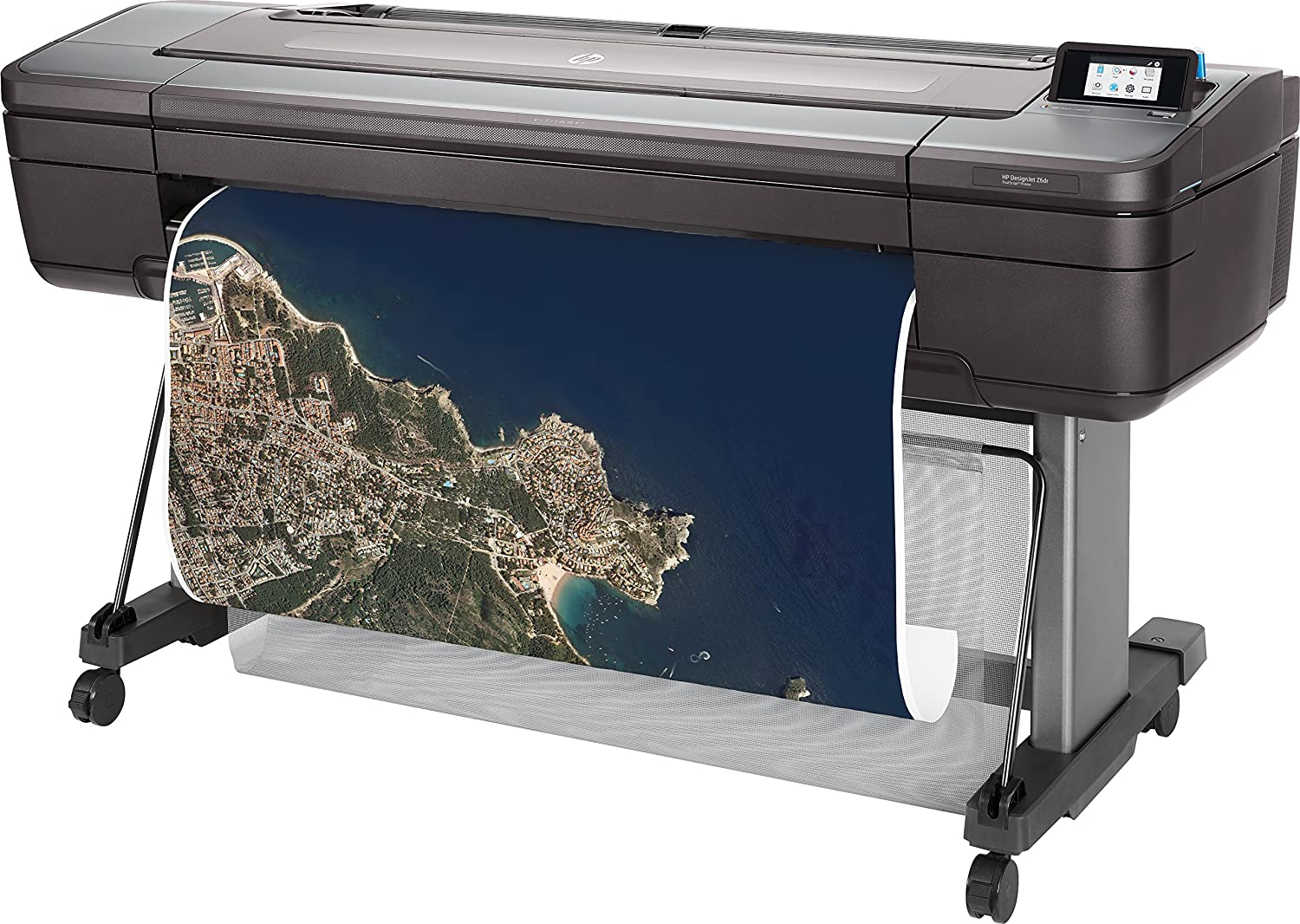

Product Details
Specifications
Accessories
Reviews
Product Details
Main Features
- Includes HP 1 year warranty
- Includes Starter Inks and Printhead (s)
- Includes vertical trimmer
- Color printouts
- Print speed: 202 ft²/hr
- Print on plain media, glossy media or coated media
- Advanced security features
- Automatic roll feed
- Cut sheet feeder
- 500 GB HDD
- Touchscreen display
Specifications
General Specifications
Model size
44 in
Functions
Speed specifications
Print time color image ISO N5 (best, D glossy paper)
3.2 min/page
Print time color image ISO N5 (normal, D glossy paper)
2.6 min/page[2]
Print time color image ISO N5 (normal, D coated paper)
1.1 min/page[2]
Memory specifications
Memory
128 GB (virtual)[6]
Internal Storage
500 GB self-encrypting
Technical specifications
Print quality (best)
Color: Up to 2400 x 1200 optimized dpi
Print technology
HP Thermal Inkjet
Number of print cartridges
6 (cyan, magenta, yellow, matte black, photo black, chromatic red)
Finished output handling
Two automatic roll feeds, smart roll-switching, top sheet feed, media output bin, automatic horizontal cutter and vertical trimmer (cuts all HP Z-series printer-qualified media, including most canvas)
Media types
Photographic, fine art printing material, self-adhesive, banner and sign, bond and coated, backlit
Media sizes standard (sheets, rolls)
11 to 44-in
Connectivity
Connectivity, standard
Ethernet, Fast Ethernet, Gigabit Ethernet, 10/100/1000Base-T Ethernet (802.3, 802.3u, 802.3ab)
USB Type-A host port
Print languages
Adobe PostScript 3, Adobe PDF 1.7, TIFF, JPEG, CALS G4, HP-GL/2, HP-RTL
Power and operating requirements
Power consumption
< 100 W (printing); < 32 W (ready); < 0.3 W (< 6.5 W with embedded Digital Front End) (sleep); 0.1 W (off)
Operating temperature range
41 to 104ºF
(5 to 40ºC )
Operating humidity range
20 to 80% RH
Dimensions and weight
Minimum dimensions (W x D x H)
71 x 27.4 x 39.3 in
Weight
211 lb
What's included
Warranty
Accessories

Reviews


Paper jam? The best way to remove jammed paper is to gently pull the paper in the direction of the paper path - with power off, of course. Do not pull the paper backwards - you could damage your printer forever by doing so.
Printing photos? Make sure that they are of print quality - meaning 300dpi. Anything lower than this will appear pixelated and lower than photo quality.
Your ink is not going onto the paper properly or you notice uneven coverage? Try aligning the print heads before you bring out the big guns.
MY ACCOUNT
INFO & POLICIES
SHOP EASY
PAYMENT OPTIONS