



 Shopping Cart
 Xerox VersaLink C7020/DM2 Multifunction Printer
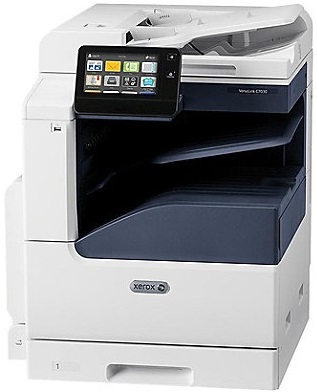


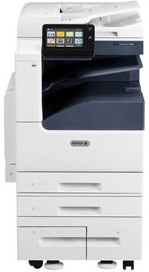



Images are for illustration purposes only and do not necessarily reflect the actual product.
Product Details
Specifications
Accessories
Reviews
Product Details
Main Features
- Color output
- Print, copy, scan
- Print Speed: 20 pages per minute
- Copy Speed: 20 pages per minute
- 7 inch control display
- Automatic duplexing
- 110 sheet automatic document feeder
- Cloud connected
- Mobile ready
- App-enabled
Specifications
General Specifications
- Product Description Xerox VersaLink C7020/DM2 - multifunction printer - color
- Device Type Multifunction printer
- Printing Technology LED (color)
- Monthly Duty Cycle (max) 87000 pages
- Recommended Monthly Volume 5500 pages
- Max Copying Speed Up to 20 ppm (mono) / up to 20 ppm (color)
- Max Copying Resolution Up to 600 x 600 dpi (mono) / up to 600 x 600 dpi (color)
- Max Copying Resolution Class Up to 600 x 600 dpi (mono) / up to 600 x 600 dpi (color)
- Max Printing Speed Up to 20 ppm (mono) / up to 20 ppm (color)
- Max Printing Resolution Up to 1200 x 2400 dpi (mono) / up to 1200 x 2400 dpi (color)
- Max Printing Resolution Class Up to 1200 x 2400 dpi (mono) / up to 1200 x 2400 dpi (color)
- Scanning 600 x 600 dpi
- Display 7"
- Original Size 13.07 in x 17.2 in (max)
- Original Type Sheets
- Document Feeder Capacity 110 sheets
- Media Size 3.5 in x 3.87 in (min) - A3 (11.7 in x 16.5 in), Ledger B Size (11 in x 17 in) (max)
- Media Type Envelopes, plain paper, labels, recycled paper, bond paper, card stock, extra heavy-weight paper, punched paper, preprinted paper
- Standard Media Capacity 620 sheets
- Max Media Capacity 4180 sheets
- Bypass Feeder Capacity 100 sheets
- Output Trays Capacity 500 sheets
- Automatic Duplexing Yes (copying) Yes (printing) Yes (scanning)
- Connection Availability Yes
- Interface Gigabit LAN, USB host, NFC, USB 3.0
- AirPrint Enabled Yes
- Office Machine Features Scan to e-mail, scan to network, scan to FTP, scan to SMB, scan to USB host, Billing Impression Mode (BIM) enabled
- Power AC 120 V (50/60Hz)
- Dimensions (WxDxH) 23.2 in x 26.4 in x 30.2 in
- Weight 147.71 lbs
- Pricing Type Xerox Metered Supplies Program
- Environmental Standards ENERGY STAR Qualified
Accessories

Reviews


Getting blank pages after you installed a new cartridge? Check that the sticker from the cartridge was properly removed. Alternatively, run the clean print head function to make sure all air bubbles are removed. Do not remove the cartridge once it has been installed.
Your printer is not a dumping ground. Don't pile documents or other things on top of it, as they could cause damage. Your printer could overheat and this could result in malfunctioning and even a reduction in the printer's life.
Don't be in a rush with your printer as you can easily damage a printer, or even get hurt, if you do not follow the instructions in the user manual.
MY ACCOUNT
INFO & POLICIES
SHOP EASY
PAYMENT OPTIONS



* Images are for illustration purposes only.