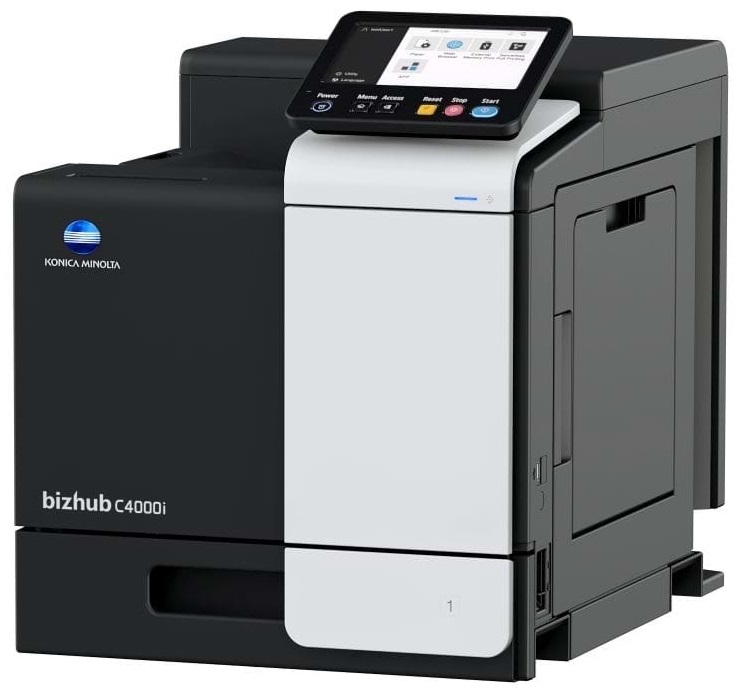
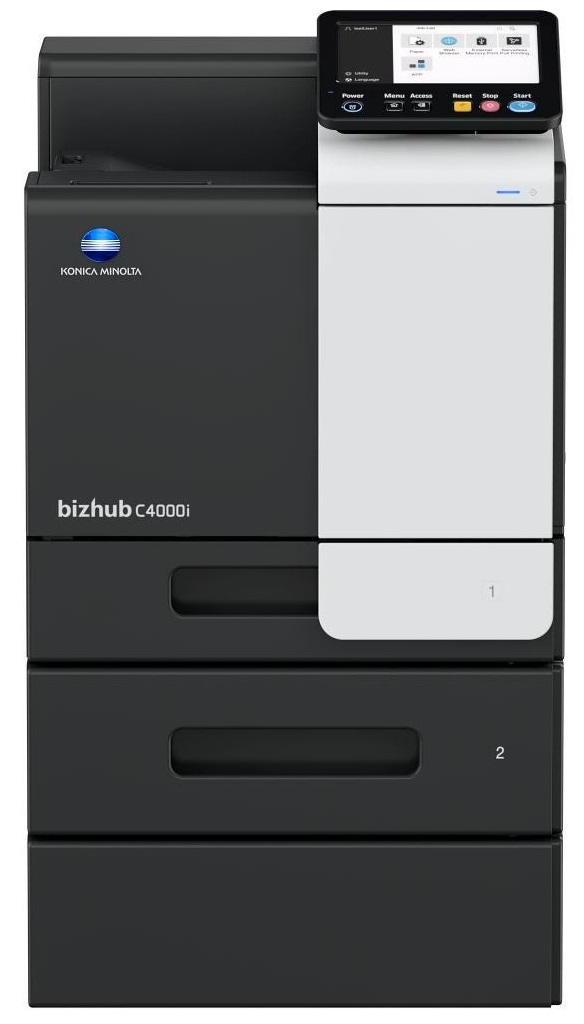
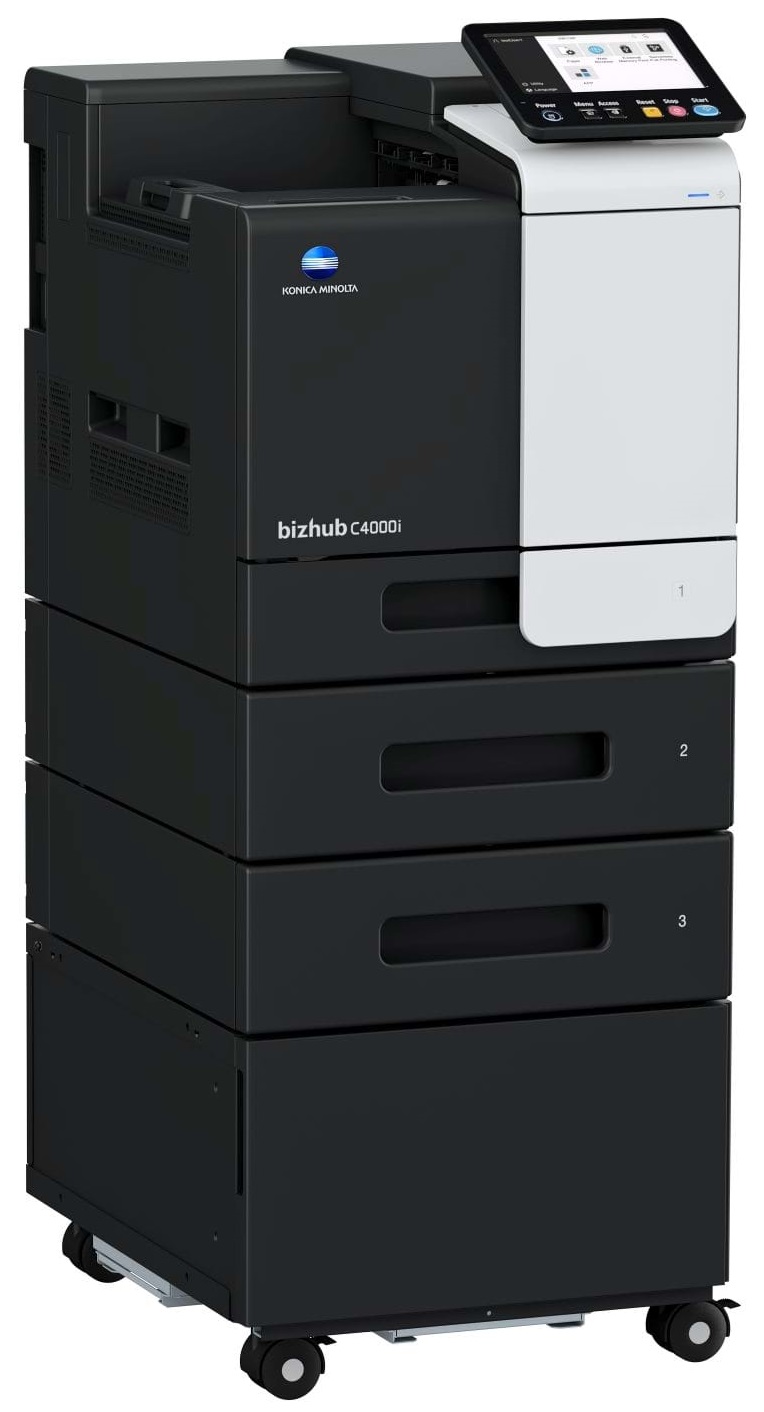
Windows 7 (32/64); Windows 8/8.1 (32/64); Windows 10 (32/64); Windows Server 2008 (32/64); Windows Server 2008 R2; Windows Server 2012; Windows Server 2012 R2; Windows Server 2016; Windows Server 2019;Macintosh OS X 10.10 or later; Unix; Linux; Citrix
Printer fonts
80 PCL Latin; 137 PostScript 3 Emulation Latin
Mobile printing
AirPrint (iOS); Mopria (Android); Konica Minolta Mobile Print (iOS/Android/Windows 10 Mobile); Mobile Authentication and Pairing (iOS/Android) Optional: Google Cloud Print; WiFi Direct
System Specifications
Panel size/resolution
7” / 800 x 480
System memory (standard/max)
4,096 MB
System hard disk
8 GB (standard)
Interface
10/100/1,000-Base-T Ethernet; USB 2.0; Wi-Fi 802.11 b/g/n (optional)
Getting blank pages after you installed a new cartridge? Check that the sticker from the cartridge was properly removed. Alternatively, run the clean print head function to make sure all air bubbles are removed. Do not remove the cartridge once it has been installed.
Printer not working? Check that the ink and toner are there and properly filled.
If debris is the primary cause of failures, toner is the primary cause of debris. All toner cartridges release a small amount of toner powder into the machine. This is why it's important to clean the machine when you change the cartridge.




 Shopping Cart