



 Shopping Cart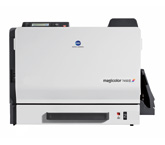

Product Details
Specifications
Accessories
Reviews
Product Details
Konica Minolta magicolor 7450 II office color printers produce extraordinary image quality - in color or B&W and are equipped to handle a diverse range media to suit your business printing needs.
Overview
The Konica Minolta Magicolor 7450-II Color Laser Printer is designed to output professional quality printing for in-house businesses. The Magicolor 7450 II prints up to 24.5 ppm in both color and B&W and is able to create documents in sizes ranging from 3.55" x 5.50" to 12.25" x 47.24".
-
Office color printers come standard with a 733 MHz G4 processor; Emperon Technology and custom acceleration hardware
-
Gigabit Ethernet interface provides networking capabilities across Windows, Macintosh and Linux platforms. The magicolor 7450 II supports PostScript 3 (v3016) and PCL 6 emulations for seamless processing of all your color documents.
Other Features Include:
-
9600 x 600 dpi-class resolution and Simitri Polymerized Toner generate true-to-life photographic detail, smooth gradients, and saturated color.
-
Enhanced Automatic Image Density Control (eAIDC) assures consistent color on every print, every day.
-
Broad media support, including weights up to 140 lb. index (256 g/m2), provides enormous flexibility for brochure printing, promotional publishing, and commercial-quality documents.
-
Color office printers offer a 120,000 print monthly duty cycle and a maximum paper input capacity of 1,850 sheets.
Main Features:
-
Color: 24 ppm
-
B&W: 24 ppm
-
9600 x 9600 dpi
-
256MB RAM
-
Ethernet/USB and Parallel
-
Up to 12.25"x48"
-
100 sheet mpt
-
250 sheet input
Specifications
Accessories

Reviews


Don't be in a rush with your printer as you can easily damage a printer, or even get hurt, if you do not follow the instructions in the user manual.
Are you getting diminished color and print quality? If all your images start to look a bit purple, blue or orange, one of your ink wells may be running low. Replace the whole printer ink cartridge, unless you can refill the individual ink wells.
Use a lightly dampened cloth to clean the outside of your laser printer. To clean the inside, use a dry, lint-free cloth to make sure that no liquid enters the inner parts of the printer.
MY ACCOUNT
INFO & POLICIES
SHOP EASY
PAYMENT OPTIONS