



 Shopping Cart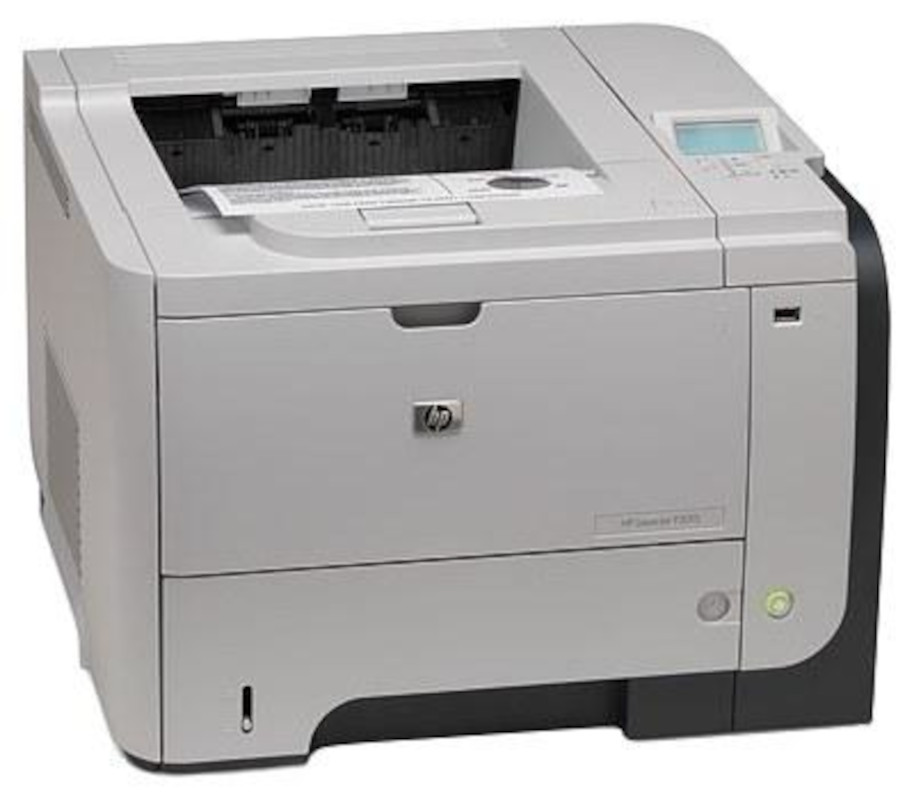

*** ALL TONERS AND SUPPLIES ARE IN STOCK AT DISCOUNTED PRICING , CALL +18882983095.
All reconditioned printers do not include supplies - toners , drums (Imaging Units) (where applicable) , printer cables , manuals , consumables, trays (where applicable). Power cables are included. Drivers can be downloaded from the manufacturers website. Please verify that drivers available are compatible with your software on the manufacturers site.
Product Details
Specifications
Accessories
Reviews
Product Details
 Main Features
Specifications
General Specifications
| Printer Category: Laser |
| Type: Printer Only |
| Color or Monochrome: Monochrome |
| Technology (for laser category only): Laser |
| Connection Type: USB, Ethernet |
| Maximum Standard Paper Size: Legal |
| Number of Ink Colors: 1 |
| Direct Printing from Cameras: No |
| LCD Preview Screen: No |
| Rated Speed at Default Settings (Mono): 42 ppm |
| Duty Cycle: 100000 pages per month |
| Input Capacity (printer input only): 600 sheets |
| Print Duplexing: Yes |
| Cost Per Page (Mono): 1.8 cents |
| Business Applications - DEFAULT SETTINGS - Adobe Acrobat 8 - 4 pages, text and photos (landscape):0:21 (min:sec) |
| Business Applications - DEFAULT SETTINGS - Microsoft Excel 2003 - 1 page, table A (with grid):0:07 (min:sec) |
| Business Applications - DEFAULT SETTINGS - Microsoft Excel 2003 - 1 page, graph: 0:07 (min:sec) |
| Business Applications - DEFAULT SETTINGS - Microsoft Excel 2003 - 3 pages, charts and graphs:0:10 (min:sec) |
| Business Applications - DEFAULT SETTINGS - Microsoft PowerPoint 2003 - 4 full-page slides: 0:14 (min:sec) |
| Business Applications - DEFAULT SETTINGS - Microsoft Word 2003 - 2 pages, text: 0:09 (min:sec) |
| Photos - HIGH -QUALITY SETTINGS - Adobe Photoshop 7 - Average output time per print: 4" x 6" prints : 0:07 (min:sec) |
 Download Manufacturer Specifications
Accessories

Reviews


Store your laser printer in a properly ventilated area where temperature and humidity do not change frequently. Avoid areas with heavy dust buildup.
Use a lightly dampened cloth to clean the outside of your laser printer. To clean the inside, use a dry, lint-free cloth to make sure that no liquid enters the inner parts of the printer.
Is your printer smearing immediately after changing a cartridge? Check that the protective tape over the nozzles is completely removed.
MY ACCOUNT
INFO & POLICIES
SHOP EASY
PAYMENT OPTIONS