



 Shopping Cart
 Epson WorkForce DS-530 II Color Duplex Document Scanner
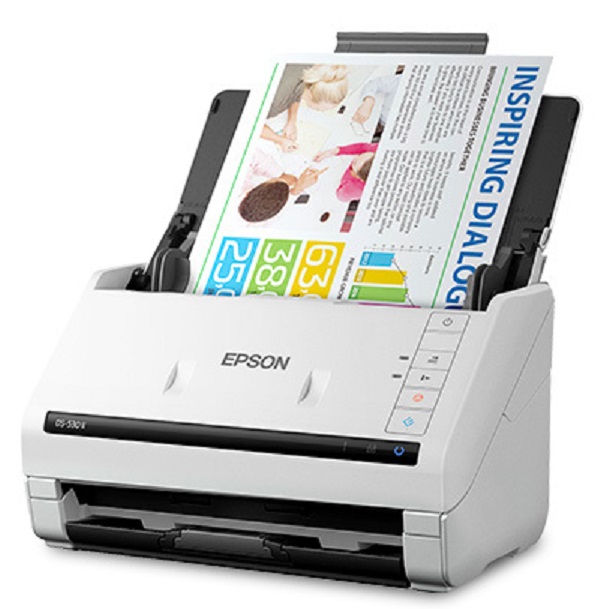


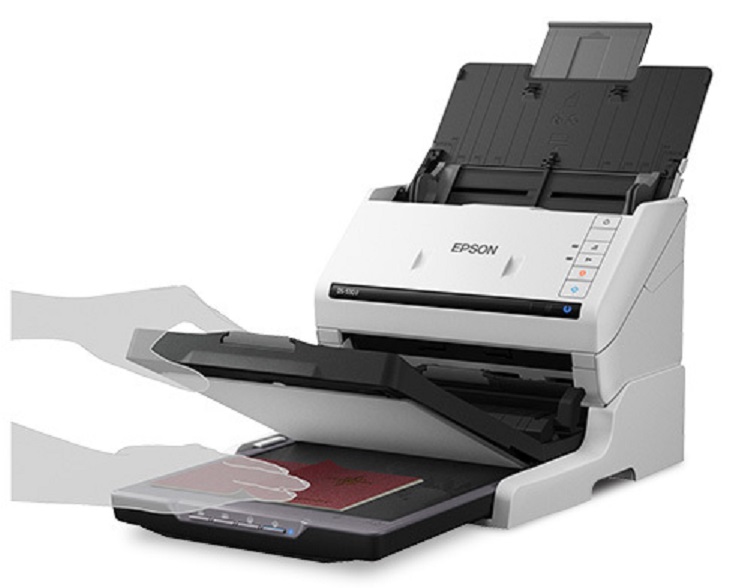
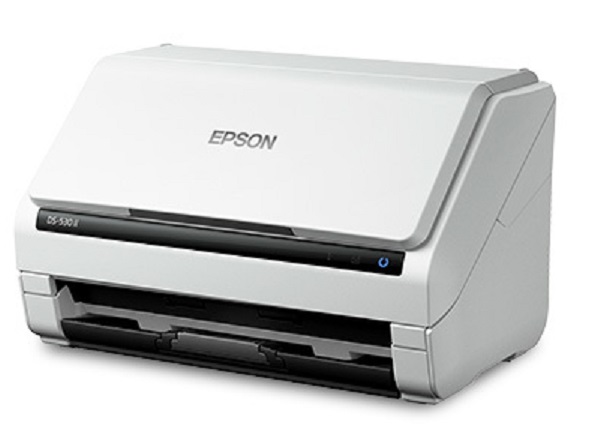
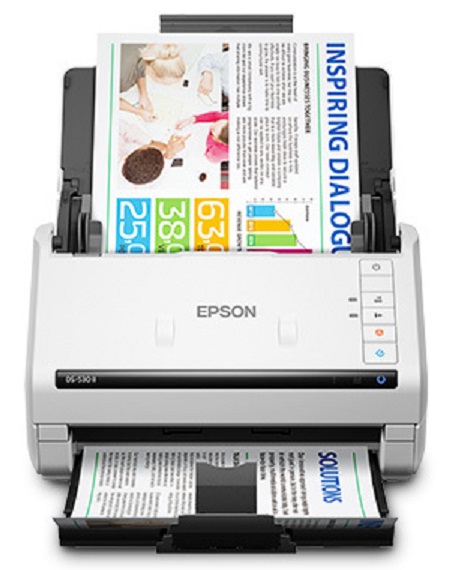

Images are for illustration purposes only and do not necessarily reflect the actual product.
Scanner Type:Sheet-fed, one-pass duplex color scannerPhotoelectric Device:Color Contact Image Sensor (CIS)Optical Resolution:300 dpiColor Bit Depth:30-bit inputGrayscale Bit Depth:24-bit outputLight Source:3-color RGB LEDScanning Speed:35 ppm/70 ipm: 300 dpi Black & White, Color, Gray1
Capacity:50 sheets
Temperature:41° to 95° F (5° to 35° C)Humidity:10 – 80% (no condensation)Dimensions:6.6" x 11.6" x 6.9" (W x D x H)Weight:8.1 lb
Buttons:4 push buttons: Double Feed Detect Skip, Slow Scan Mode, Scan, Stop
Standard Connectivity:
Power Consumption:
Product Details
Specifications
Accessories
Reviews
Product Details
Main Features
- Duplex scanner
- Speed: 35 ppm/70 ipm
- 50-page Auto Document Feeder
- Double Feed Detection Skip
- Slow Speed Mode
- Programmable jobs
- Resolution: 600 dpi
- Document Size: Min: 2" x 2" Max: 8.5" x 240
- Daily Duty Cycle: 4,000 sheets
Specifications
General Specifications
Specifications Scanner:
Scanner Type:Sheet-fed, one-pass duplex color scannerPhotoelectric Device:Color Contact Image Sensor (CIS)Optical Resolution:300 dpiColor Bit Depth:30-bit inputGrayscale Bit Depth:24-bit outputLight Source:3-color RGB LEDScanning Speed:35 ppm/70 ipm: 300 dpi Black & White, Color, Gray1
Automatic Document Feeder:
Capacity:50 sheets
Document Sizes:
- Paper size Minimum: 2" x 2"
- Paper size Maximum: 8.5" x 240
General:
Temperature:41° to 95° F (5° to 35° C)Humidity:10 – 80% (no condensation)Dimensions:6.6" x 11.6" x 6.9" (W x D x H)Weight:8.1 lb
Scan Features:
Buttons:4 push buttons: Double Feed Detect Skip, Slow Scan Mode, Scan, Stop
Connectivity:
Standard Connectivity:
- SuperSpeed USB 3.0
- Optional Network Interface Unit (RJ-45, 10BaseT/100Base TX)
- Windows® 7, 8/8.1, 10
- Mac OS® X 10.6.8 – 10.11.x
- Software requires Internet connection for download and installation.
Power Consumption:
- Operation: 17 W
- Ready: 9.2 W
- Sleep: 1.2 W
- Off: 0.1 W
 Download Manufacturer Specifications
Accessories

Reviews


In order for your image to come out as sharp as possible, ensure the document is flat against the glass.
Bear in mind that in order to get the best quality, you should scan the original negative rather than the printed photo, if it's available.
Choosing a scanner with a fast preview speed will quicken the whole scanning process.
MY ACCOUNT
INFO & POLICIES
SHOP EASY
PAYMENT OPTIONS



* Images are for illustration purposes only.